 WhatsApp Us Now
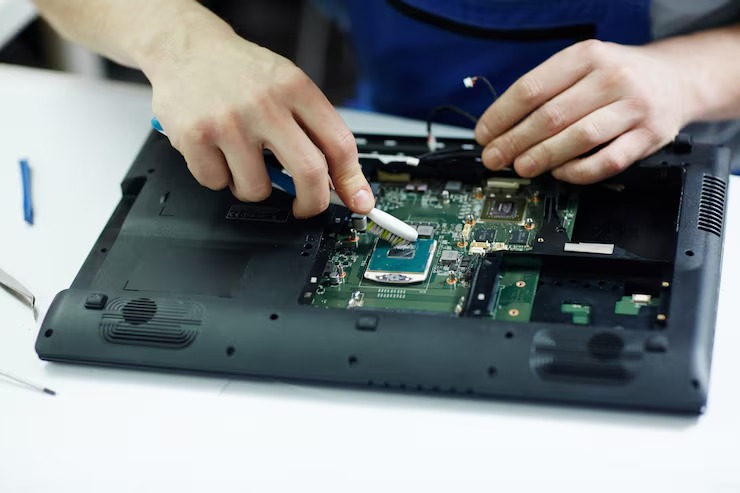
A laptop battery plays a vital role in maintaining mobility and convenience for users. However, when the battery starts to fail, it can disrupt productivity and cause frustration. Diagnosing a faulty battery is not as simple as assuming it needs replacement. Professionals follow a series of systematic steps to identify the root cause of the issue before proceeding with repairs or replacements. This ensures that the laptop receives the right fix and continues performing efficiently. Whether you’re considering a technician for Laptop Repair Paterson NJ or simply want to understand the process, knowing how experts diagnose laptop battery issues can help you make informed decisions.
Understanding the Common Signs of Battery Issues
Before diving into the diagnostic steps, technicians first look for symptoms that indicate a possible battery malfunction. Common signs include the battery draining unusually fast, charging inconsistently, overheating, or the system shutting down abruptly. Sometimes, the laptop fails to recognize the battery altogether. These indicators provide an initial clue that a deeper diagnostic process is required.
Step 1: Performing a Visual Inspection
The first step professionals take when diagnosing laptop battery problems is a visual examination. They check for signs of physical damage such as swelling, leaks, or corrosion around the battery compartment. A bloated battery indicates a chemical reaction inside the cells that makes the battery unsafe for use. Additionally, technicians inspect the charging port and connectors to ensure there’s no debris or loose connection affecting the power flow. This stage helps rule out any visible issues before moving to technical assessments.
Step 2: Checking the Power Adapter and Charging Circuit
A malfunctioning adapter or power circuit can mimic battery issues. Experts ensure that the power adapter provides the correct voltage output. They use a multimeter to verify the adapter’s functionality. If the adapter or charging port is damaged, the battery may not charge properly, even if it’s in good condition. At this point, technicians might recommend testing the laptop with another compatible adapter to confirm whether the problem lies in the charging system rather than the battery itself. For professional guidance on such hardware checks, you can Click Here to connect with reliable service providers who specialize in laptop diagnostics.
Step 3: Utilizing Built-in Battery Diagnostic Tools
Most modern laptops come with built-in diagnostic tools that help assess battery health. Experts use system utilities like Windows Battery Report or macOS System Information to evaluate battery cycles, wear levels, and current capacity. These reports show whether the battery still holds charge effectively or if it’s deteriorating. A battery’s health percentage helps technicians decide whether calibration, reconditioning, or replacement is needed.
Step 4: Running BIOS or UEFI Diagnostics
Many laptop brands include BIOS-level diagnostics that help detect hardware faults independent of the operating system. Professionals access the BIOS or UEFI diagnostic menu to run battery tests that measure charging behavior and discharge rates. These tools provide detailed information about the battery’s voltage, temperature, and overall performance stability. If inconsistencies appear during the BIOS test, technicians can confirm that the issue stems from the battery rather than a software conflict. To gain More Information about advanced hardware testing methods, exploring professional computer service resources can be helpful.
Step 5: Measuring Battery Voltage and Current Flow
Technicians often measure the voltage and current output of the battery to determine if it’s operating within safe parameters. Using specialized testing equipment, they assess how well the battery holds charge over time. A healthy lithium-ion battery maintains consistent voltage levels; any drop indicates cell imbalance or internal damage. Professionals use these readings to decide whether reconditioning is possible or if a full replacement is the best course of action.
Step 6: Inspecting for Software and Driver Issues
Sometimes, battery problems are not hardware-related. Outdated drivers or firmware can prevent proper communication between the battery and the operating system. Experts update the laptop’s power management drivers and check for any BIOS updates issued by the manufacturer. They also analyze background applications that may drain the battery excessively. For users in need of assistance, visit this website to understand how professionals handle both hardware and software aspects during diagnosis.
Step 7: Evaluating Battery Calibration
When a laptop shows inaccurate battery percentage readings, calibration is essential. Technicians perform full charge and discharge cycles under controlled conditions to recalibrate the battery sensors. This helps the system read the correct power levels and extend the battery’s usable life. Calibration ensures that the laptop accurately displays remaining power and avoids premature shutdowns.
Step 8: Assessing Battery Cycle Count
Every battery has a limited number of charge cycles before its capacity begins to degrade. Professionals check the battery’s cycle count through diagnostic tools to determine its age and remaining lifespan. A battery nearing its maximum cycle limit is usually due for replacement. This metric also helps rule out other potential causes when a battery loses efficiency. To Get Started with expert diagnostics, finding certified technicians who use genuine tools and parts is crucial for accurate results.
Step 9: Analyzing the Power Management Settings
Improper power settings can accelerate battery wear. Experts review power management configurations within the operating system to ensure optimal energy usage. They adjust settings like display brightness, sleep modes, and background application permissions to improve efficiency. Adjusting these parameters can sometimes resolve perceived battery issues without replacing the hardware.
Step 10: Conducting a Controlled Load Test
In this step, professionals simulate typical usage conditions to monitor how the battery performs under load. This helps determine whether the battery can sustain power delivery during multitasking. During this test, they observe temperature changes, charge retention, and discharge rates to ensure the battery performs within expected limits. To learn how such testing benefits device longevity, you can Go to the Website of trusted laptop service centers offering diagnostic expertise.
Step 11: Cross-Checking with Replacement Batteries
As a final verification step, technicians may test the laptop with a compatible replacement battery. If the system functions normally, it confirms the original battery as the source of the problem. This ensures that customers don’t spend money replacing other parts unnecessarily.
Why Professional Diagnosis Matters
Attempting to diagnose or repair a laptop battery without the right tools can be risky. Professionals ensure the process is safe, efficient, and accurate. They not only identify whether a replacement is needed but also check for deeper issues in the power circuit that may have caused the failure. If you require expert services for Laptop Repair Paterson NJ, reaching out to certified technicians at TALK N FIX WIRELESS ensures a precise diagnosis and reliable repair solution tailored to your device.
Final Thoughts
Laptop batteries are complex components that require careful evaluation before replacement. Through visual checks, diagnostic tools, firmware updates, and controlled tests, experts can identify the exact cause of power-related issues. Professional diagnosis saves time, prevents further damage, and ensures your laptop continues to perform efficiently for years to come. To maintain your device’s health and ensure it receives proper care, you can by consulting professional repair services that follow structured and safe diagnostic procedures.


